Kabellose Freiheit: HP-Drucker unter Linux optimal nutzen
Einleitung
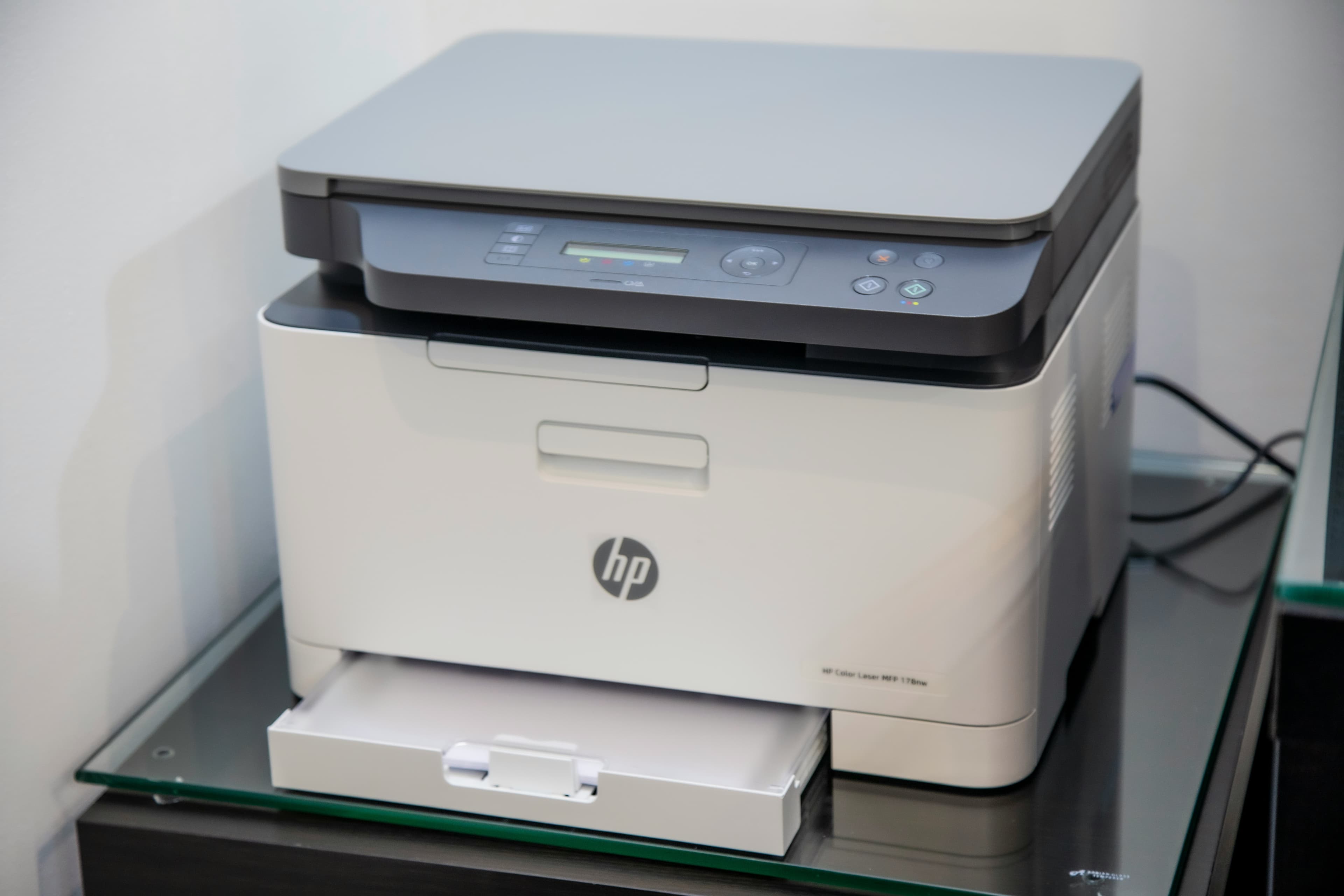
Das Verhältnis zwischen Linux und Druckern galt lange als kompliziert, doch HP gehört in diesem Bereich erfreulicherweise zu den „Guten“. Dank des HPLIP-Projekts (HP Linux Imaging and Printing) ist die Einrichtung eines HP DeskJet 2630 (oder fast jedes anderen HP-Modells) unter Linux oft sogar reibungsloser als unter Windows.
Egal, ob Sie ein minimalistisches Arch-Build oder eine polierte Fedora-Workstation nutzen: Dieser Guide zeigt Ihnen, wie Sie die Ersteinrichtung meistern, die WLAN-Verbindung konfigurieren und Ihre Dokumente verwalten – ganz ohne proprietäre „Bloatware“.
1. Die Basics installieren
Bevor Hardware und Software miteinander kommunizieren können, benötigen Sie die passenden Treiber. Die meisten Distributionen führen HPLIP in ihren Repositories, aber unter Umständen müssen Sie manuell nachhelfen.
- Ubuntu/Debian:
sudo apt install hplip hplip-gui - Fedora:
sudo dnf install hplip hplip-gui - Arch:
sudo pacman -S hplip python-pyqt5(Letzteres wird für die grafische Oberfläche benötigt)
2. Die Einrichtung mit hp-setup
HP bietet mit hp-setup ein dediziertes Tool für die Konfiguration an. Je nach Vorliebe (und Verbindungstyp) stehen Ihnen zwei Wege offen.
Option A: Das Terminal (CLI)
Wenn Ihr Drucker bereits per USB eingesteckt oder via Ethernet mit dem Router verbunden ist, ist die Kommandozeile der schnellste Weg.
hp-setup -iDas -i steht für interaktiv. Der Assistent führt Sie durch die Auswahl des Verbindungstyps, die Benennung des Druckers und die Installation notwendiger proprietärer Plug-ins (die vor allem für einige LaserJet-Modelle erforderlich sind).
Option B: Die grafische Oberfläche (Empfohlen für WLAN)
Falls Sie ein Modell wie den DeskJet 2630 besitzen und diesen zum ersten Mal mit dem WLAN verbinden möchten, ist die grafische Oberfläche sehr zu empfehlen. Während das Terminal mächtig ist, erfordert die initiale Drahtlos-Konfiguration meist den grafischen Wizard.
- Starten Sie
hp-setupim Terminal (ohne das-i). - Wählen Sie "Wireless/802.11 (USB required for setup)".
- Verbinden Sie den Drucker vorübergehend per USB. Das Tool scannt nach lokalen SSIDs, fragt nach Ihrem WLAN-Passwort und überträgt diese Zugangsdaten an den Drucker.
- Sobald die WLAN-Leuchte am Drucker dauerhaft leuchtet, können Sie das USB-Kabel entfernen und die Installation über das Netzwerk abschließen.
3. Drucken und Scannen
Sobald hp-setup abgeschlossen ist, ist Ihr Drucker bei CUPS (Common Unix Printing System) registriert – dem Herzstück des Druckens unter Linux.
Sie können nun aus jeder Anwendung wie LibreOffice oder Firefox drucken. Um die Warteschlange zu verwalten, Tintenstände zu prüfen oder eine Druckkopfreinigung durchzuführen, nutzen Sie den HP Device Manager:
hp-toolboxDieses Dashboard liefert Ihnen einen visuellen Status Ihrer Patronen und zeigt Fehler an, ohne dass Sie ständig auf das kleine Display am Drucker schauen müssen.
Scannen
HP „All-in-One“-Geräte werden unter Linux hervorragend durch das SANE-Backend (Scanner Access Now Easy) unterstützt. Sie brauchen keine spezielle HP-Scan-App; stattdessen gibt es zwei großartige native Optionen:
- Dokument-Scanner (Simple Scan): Die Standardlösung für GNOME/Ubuntu-Nutzer. Ideal für das schnelle Erstellen von PDFs oder JPEGs mit nur einem Klick.
- XSane: Wer professionelle Kontrolle über Gammawerte, Auflösung und Farbkorrektur benötigt, greift zu XSane – dem Werkzeug für Power-User.
Tipps zur Fehlerbehebung
- Berechtigung verweigert: Falls Ihr Scanner nicht erkannt wird, fehlen Ihrem Benutzerkonto eventuell die nötigen Rechte. Dies lässt sich beheben, indem Sie sich den Gruppen
lpundscannerhinzufügen:sudo usermod -aG lp,scanner $USER(Danach einmal aus- und wieder einloggen). - Die „Plug-in-Schleife“: Bestimmte LaserJet-Modelle benötigen ein proprietäres Binary-Blob. Falls der automatische Download fehlschlägt, können Sie ihn hiermit erzwingen:
hp-plugin - Statische IP: Falls Ihr Drucker nach einem Router-Neustart „verschwindet“, sollten Sie ihm in den Router-Einstellungen oder über die erweiterten Optionen in
hp-setupeine feste IP-Adresse zuweisen.
Nächste Artikel.

Copy Fail: Page-Cache-Manipulation im Linux-Kernel (CVE-2026-31431)
Die als 'Copy Fail' bekannte Schwachstelle CVE-2026-31431 ermöglicht lokale Rechteausweitungen durch die Manipulation des Page-Caches. Dieser Artikel analysiert die technischen Hintergründe im algif_aead-Interface.

Dirty Frag: Speicherkorruption im Linux-IPv6-Stack (CVE-2026-43500)
Dirty Frag beschreibt eine kritische Schwachstelle im Netzwerk-Stack des Linux-Kernels. Durch eine Race Condition bei der IPv6-Fragmentierung können Angreifer eine Heap-Korruption und lokale Rechteausweitung erzwingen.

Atomic Arch. Wie 1.500 AUR-Pakete ohne Exploit gekapert wurden
Analyse der jüngsten Atomic-Arch-Supply-Chain-Kampagne. Angreifer übernahmen verwaiste Arch-Linux-Pakete, um einen Credential-Stealer und ein eBPF-Rootkit zu verbreiten. Was Sie über den Vorfall wissen müssen.