How to deploy a next.js application on docker hub

Prerequisites
Make sure you follewed the prerequisites from the previous post. Make also sure you have a Docker Hub account and have docker installed. A guide on how to install docker can be found here.
Creating a simple Dockerfile
To deploy a next.js application on docker hub we need to create a Dockerfile in the root of our project.
We can use a very simple Dockerfile to get started:
FROM node:18
WORKDIR /app
COPY package*.json ./
RUN npm install
COPY . .
EXPOSE 3000
CMD npm run devThis Dockerfile uses the official node image as a base image.
It sets the working directory to /app, copies the package.json and package-lock.json files to the working directory,
installs the dependencies, copies the rest of the files to the working directory, exposes port 3000, and starts the next.js application in development mode.
You can now build the docker image by running:
docker build -t my-next-js-app .And run the docker container by running:
docker run -p 3000:3000 my-next-js-appYou can now access your next.js application in the browser at http://localhost:3000.
While this gets us started, it is not suitable for production.
Creating a production-ready Dockerfile
To create a production-ready Dockerfile we can use the docker file provided by vercel.
This has several advantages over the simple Dockerfile:
- It uses a multi-stage build to reduce the size of the final image.
- Automatically leaveraging output traces to further reduce the size of the final image.
- It uses a non-root user to run the next.js application.
- Does not expose the next.js application in development mode.
- Does not provide page sources in production.
Keep in mind that the Dockerfile provided by vercel collects completely anonymous telemetry data about general usage.
You can disable this by setting the NEXT_TELEMETRY_DISABLED environment variable to 1.
Before we can build the docker image we have to edit the next.config.(m)js file and add the output: "standalone" option:
/** @type {import('next').NextConfig} */
const nextConfig = { output: "standalone" };
export default nextConfig;Now we can build our production docker image by running:
docker build -t my-next-js-app .and run the docker container via
docker run -p 3000:3000 my-next-js-appPushing the docker image to docker hub
Before pushing the docker image to docker hub we need to create a repository.
In order to do this, login to your Docker Hub account in a browser > click on Create Repository > set a name for the repository > choose a visibility > click on Create.
Now we can push the docker image to docker hub. First we need to login to docker hub via the terminal:
docker loginNow we can tag the docker image with the repository name:
docker tag my-next-js-app:latest my-docker-hub-username/my-next-js-app:latestAnd push the docker image to docker hub:
docker push my-docker-hub-username/my-next-js-app:latestCongratulations, you can now access your next.js application on docker hub! 🥳
Conclusion
Containerizing your application is the biggest hurdle in modern deployment, and now that your image is hosted, you have opened the door to professional-grade scaling.
Take your project to the next level:
- Organize your logic: Deep dive into complex page structures in Mastering Next.js Routing: From Pages to Dynamic Segments.
- Build a content engine: Turn your app into a high-performance site with Mastering Next.js Content: A Deep Dive into Static MDX Blogs.
Read Next.
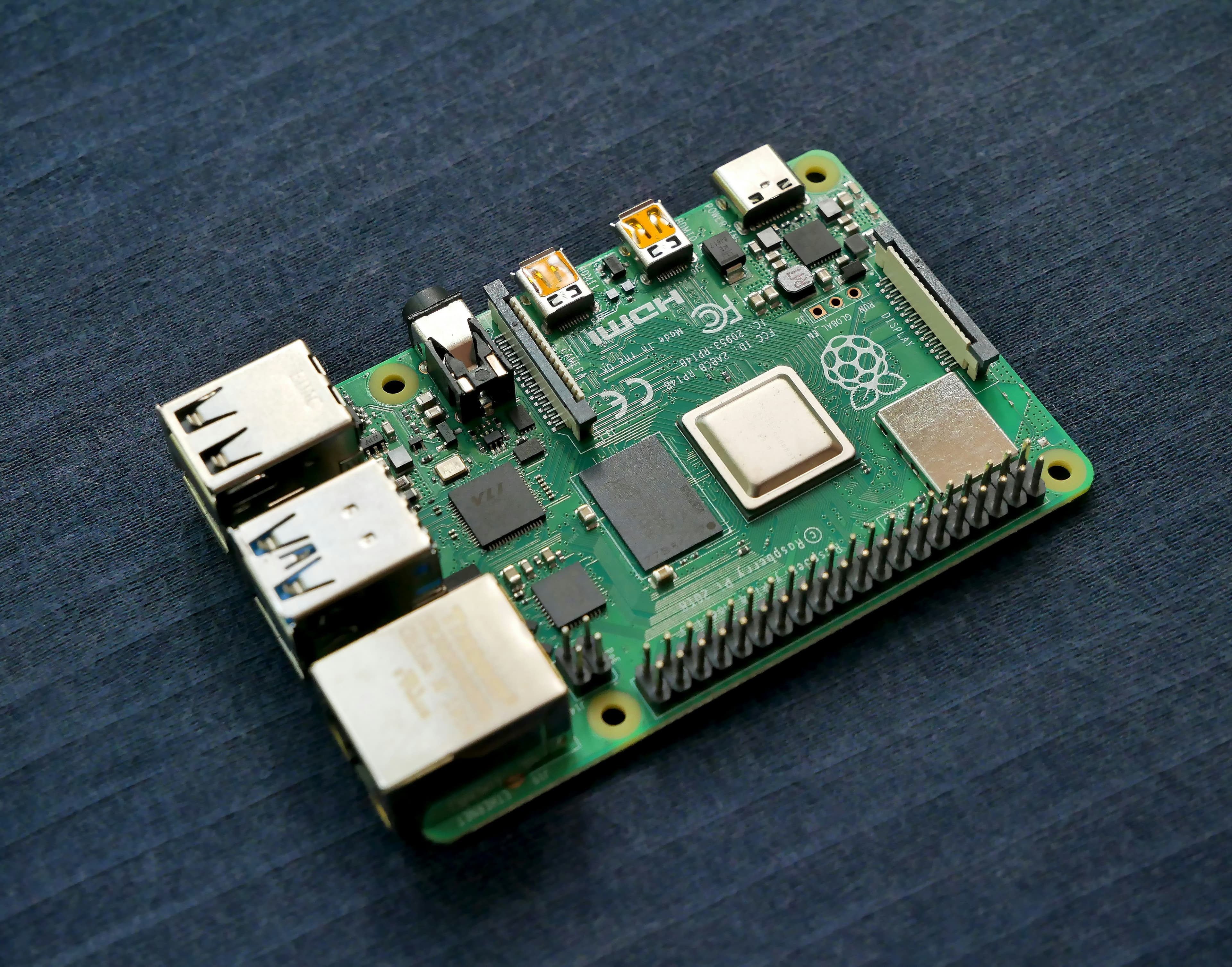
How to Access Raspberry Pi GPIO Pins Inside a Docker Container
Trying to control your Raspberry Pi's GPIO pins from inside a Docker container? Here is the quick solution using docker-compose and /dev/gpiomem.

How to create a next.js application with create-next-app
In this post we will explore how to create a next.js application using create next app.

Internal TryHackMe Write-Up
The Internal room on TryHackMe is an hard challenge that let's you slip in the role of a penetration tester, where your objective is to perform a thorough penetration test